


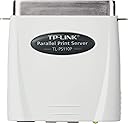


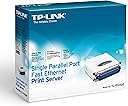
TP-LINK TL-PS110P Single Parallel Port Fast Ethernet Print Server
Product ID: 49609479
⚡10/100Mbps Fast Ethernet Port
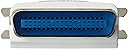
🔌Bi-directional Parallel Port (DB-36-pin)
🖥️Supports Multi-OS & Multi-Protocol
🖨️ Connect. Print. Impress. Effortless network printing for the savvy professional.
The TP-LINK TL-PS110P is a compact, high-speed print server that connects parallel port printers to your network, enabling seamless printing from any LAN-connected device. Supporting over 230 printer models and multiple operating systems, it features a 10/100Mbps Ethernet port, bi-directional communication, and smart diagnostic alerts, making it an essential tool for efficient, modern office environments.
| Brand | TP-Link |
| Product Dimensions | 5.08 x 5.84 x 2.03 cm; 50 g |
| Batteries | 1 Lithium Ion batteries required. |
| Item model number | FBA_TL-PS110P(UK) |
| Manufacturer | TP-Link |
| Wireless Type | 801.11ac |
| Voltage | 220 |
| Wattage | 1000 |
| Are Batteries Included | No |
| Lithium Battery Energy Content | 2 Kilowatt Hours |
| Lithium Battery Packaging | Batteries packed with equipment |
| Lithium Battery Weight | 2 Grams |
| Number Of Lithium Ion Cells | 5 |
| Number of Lithium Metal Cells | 5 |
| Item Weight | 50 g |
| Guaranteed software updates until | unknown |
1**E
Simple and Effective
Having looked for a print server for an ancient, but reliable, LaserJet 5L printer I finally decided to go for the TP-Link. I'd read reviews of other devices saying that they only supported one printer at a time, kept dropping off the network, were complex to setup, so I was a little nervous. I also have a very mixed set of machines, 2 XP, 1 Win 7 and 1 Mac, which also ruled out a number of other models. However, it all turned out to be pretty easy with this piece of kit. You will need a Windows machine (and yes, it supports Windows 7, which was good news). I simply plugged it into the back of the printer, put my network cable in and ran the installation disc. It does say for you to have the IP address of your router handy (it's usually 192.168.x.x and if you don't know it go into the router setup page, or look at the manufacturers website) and it then suggests an IP address for the printer on the network. It sounds complex, but it's really straight-forward. If you already had the printer installed on the machine, it detects it and that is pretty much it. If not (and I didn't), you install it using the 'Add Printer' menu (it says to install it as a local printer and to use LPT1, which works fine). Setting up the Mac was even easier. The server has AppleTalk built into it, so just hitting the '+' button in 'Printer & Fax' menu brings it up as a printer to add, click on it, job done! The XP machines were a little more involved, having to add the printer manually. You won't see it under 'network printers', instead you have to configure a port and type in the printer's IP address. Again, it's in the instructions (if a little buried in the manual), but it's simple to do when you know how. Multiple machines can be on and all access the printer at the same time. There is a web interface where you can access reports such as what jobs were sent to the printer and when and set up detailed and complex parameters if that's your thing. Print servers can be a little temperamental if you loose your internet connection, or re-boot your modem or router. It survived both. All in all, simple, effective, cheaper than a lot of other models - what's not to like!
A**N
Excellent
Can't fault this at all. It enables a parallel printer to be used on a network: it plugs directly into the printer (Centronics interface) and a standard Ethernet cable connects it to a network port on your PC, Mac, hub/switch or router. It works on both Windows and Mac, and works on my MacBook Pro, whereas two different parallel-USB cables didn't work, on two different printers. So this is recommended as the best method of getting a parallel printer working on a Mac or a Windows laptop with no parallel port. It also enables use of the printer from any other computer on the network. Windows instructions & mini-CD are included with the product; Mac instructions are on their website ([...]) & need no CD. The print server comes configured as 192.168.0.10: as usual with servers, to change this (eg if that address is already used, or your network is 192.168.1.x instead of 192.168.0.x), you connect it directly to the PC/Mac and follow the detailed instructions to change it. If you haven't got a free network port, instead of this cabled print server use a wireless print server. You can connect as many of these as you like (up to about 240!); just configure each one to have a different IP address. Note that drivers for many older printers (including HP 6P and HP ColorLaser4550) are already on a Mac; don't download a driver unless you have to. Also note that Gutenprint drivers seem not to support colour.
A**3
Mac printer problem resolved
I bought this in the hope it would solve a printer problem I was experiencing. My macbook pro running OS 10.7 (Lion) was connected to my old, indestructible HP Laserjet 5000 printer via a USB to Parallel cable. I could print one document and then the mac would promptly lose the printer, claiming it was "not connected". With the TL-PS110P attached to my router via an ethernet cable and plugged into my printer's parallel port, the problem is solved and everything works fine. There's nothing for mac on the supplied disc (it's one of those 3 inch mini discs so don't even think about trying it in your macbook's CD drive - you'll never get it out again!) and the instructions on the manufacturer's site (when you find them) are a bit out of date, but with a bit of application it's possible to make it work. I wish TP-Link had included up-to-date mac guidance in the supplied booklet, but apart from that I would say this is a good product.
T**M
For a PC great
Connected to a HP LJ 6P it works well when printing from a PC but smartphone print apps (and Ive tried 30 all struggle to find drivers to make it work. Just spews out postscript.
A**.
Unresponsive when setup on network.
Unfortunately I had to return this item. Having set it up on our network with a static IP the Print Server continually dropped packets and off the network similar to other reviewers. I tried several times setting it various ways with dynamic IP as well and all the usual settings to the same effect by dropping off the network and becoming unresponsive and unfortunately was not fit for use.
E**F
Saved my trusty 13yo HP Laserjet 6MP.
Well the time finally came to decommission my trusty NEC Pentium 3 Windows 2000 file and print server in my home's office in favour of a quiet SFF machine that can do all that iPlayer, DLNA streaming stuff as well and park it under the TV in the lounge. Problem is that my workhorse HP Laserjet 6MP printer that was connected and shared via the NEC needs to stay where it is and I am never getting rid of that as it's just too good. So what to do? Answer: Get one of these! I bought a Used-Like-New one from a Z shop for half the new price and so far I am delighted. Its size is roughly the same as the plug on the old printer cable and so still fits nicely within the printer's connector space under the flap. The device comes with a small 3.3v power supply, so you do also need an extra socket near by. There is also no network cable in the box. Setup was very easy using the CD supplied in the box and having RTFM. The main task of the utilities is just to allow you to set an IP address for the device for your network. But having done this, configuration changes can then be achieved just as well without the CD from a browser and then for printer clients using the Windows Add printer wizard, the manual and nothing more. I'm always reluctant to install the next piece of bloatware on my PC unless absolutely necessary. Because my printer is usually switched off, my HTPCs print to the TP-Link print server and I share the printer on the HTPCs and client machines spool to the HTPC's. The printer can then be switched on when I remember and out comes my print jobs. A very neat nice functioning device.
C**S
Are you being served? Well - No.
Bought this on the basis of the 4* plus reviews but no joy for me getting this to work. Have perservered on multiple XP computers, network cables etc. but it refuses to be detected. Have disabled firewalls, matched IP subnets and even tried direct cable connections to no avail. Considering it is presumably trying to connect via a MAC address there shouldn't be much to go wrong so I have to assume a faulty unit? As usual the provided manuals and on-line FAQ etc. are not much help. Update Technical support at TP_LINK provided me with alternative instructions to connect to the device. Still was not immediately successful but after some more trial and error with the printer settings it is finally working! On the basis of this I will raise the review rating to 2-star as I still could not recommend it after this experience.
G**E
It just works!
I bought this to replace a D-Link equivalent that had given up the ghost after years of sterling service connecting my HP Laserjet 6P to my network, which has a mix of various shades of Windows and Linux. Heeding the reviews found for this product, I carried out the initial setup from a Windows XP machine using the supplied CD. I used the CD to change the network settings to match my network and also to install the printer to the XP machine. Once this was done, pointing a browser at the print server's IP address brought up the configuration pages; so any future admin can be done from any computer on the network. Installing the printer to the other machines on my network was a doddle. Although the default driver Ubuntu offered didn't work, I suspect that was down to Ubuntu rather than the print server and an alternative CUPS driver for the printer was fine. On the whole, I'm delighted with this although only time will tell whether it has the longevity of the D-Link server it replaced.
K**T
Funktioniert hervorragend
Mit dem TP-Link Printserver habe ich es geschafft, einen uralten HP Designjet 450C A0 Plotter in Betrieb zu nehmen, obwohl das Gerät noch nicht einmal auf der Kompatibilitätsliste steht. Seit gut 4 Wochen läuft der Plotter jetzt ohne jegliche Probleme. Allerdings seit der IT-Laie gewarnt: Der Printserver hat eine voreingestellte IP-Adresse und Subnet-Mask. Ich für meinen Fall musste den Printserver mit einem Linux-Notebook verbinden um ins Konfigurationsmenü zu gelangen und die Subnet-Mask an unser Netzwerk anzupassen. Wer nicht weiß, was eine Subnet-Mask ist oder wie man eine solche ändert - z.B. in der Fritz-Box wird an dem Gerät scheitern. Erst nach Zugriff auf das interne Konfiguartionsmenü ist der Betrieb an einem normalen DHCP-Server möglich.
J**T
Good product
Like
A**.
product is working good
open the url in internet explorer
D**O
Bom produto, atendeu bem
Foi usado para conectar uma plotter Xerox 2230IJ.
M**R
Perfecto, todo OK
El producto cumple con las expectativas. Funciona bien con cualquier SO y es de instalación sencilla y rápida. Está muy bien
Trustpilot
3 weeks ago
1 month ago